






Dual Monitor Setup: Desk Setup for Two Monitors in 2026
A practical dual monitor setup needs more than enough room for two screens. Your desk should also leave comfortable space for your keyboard and mouse, support your equipment securely, and keep cables under control.
If you also use a laptop, dock, speakers or other accessories, desk size and stability become even more important. This guide explains how to arrange two monitors, choose a suitable desk layout, and decide whether a standard desk or sit-stand desk better suits your home office.
What Does a Good Dual Monitor Setup Need?
Before arranging your screens, make sure the desk can comfortably support the equipment you use every day.
Enough Desk Space for Two Monitors
Two monitors are only part of the space you need. A typical setup may also include a keyboard, mouse, laptop, dock, speakers, phone charger and notebook.
The aim is not simply to make everything fit. You should still have a clear working area in front of the screens, enough room to move the mouse comfortably, and space for equipment you use regularly.
A wider desktop can make this easier, particularly if you use large monitors or keep a laptop open beside them.
Enough Depth for Comfortable Screen Viewing
Desk depth affects how far the monitors can sit from your eyes and how much working space remains in front of them.
WorkSafe Queensland recommends positioning a monitor at about arm's length, with the exact distance adjusted for screen size and individual comfort. It also notes that a desk around 800 mm deep can provide suitable space for monitor positioning and legroom.
For many dual-monitor setups, a desk depth of around 70–80 cm provides a practical amount of space, particularly when using larger displays or monitor arms.
Source: WorkSafe Queensland – Setting up your workstation
Strong Load Capacity and Desk Stability
Two monitors, monitor arms, a laptop and other equipment can create a much heavier workstation than a simple laptop setup. Stability becomes even more important with a sit-stand desk because screen movement may become more noticeable at standing height.
For a heavier multi-device setup, the 9amHome Pesk Pro is designed with a substantial frame, larger desk legs and feet, and a Bosch dual-motor lifting system. It has a listed dynamic load capacity of 125 kg, making it suitable for workstations that need to support two monitors, monitor arms and other office equipment.
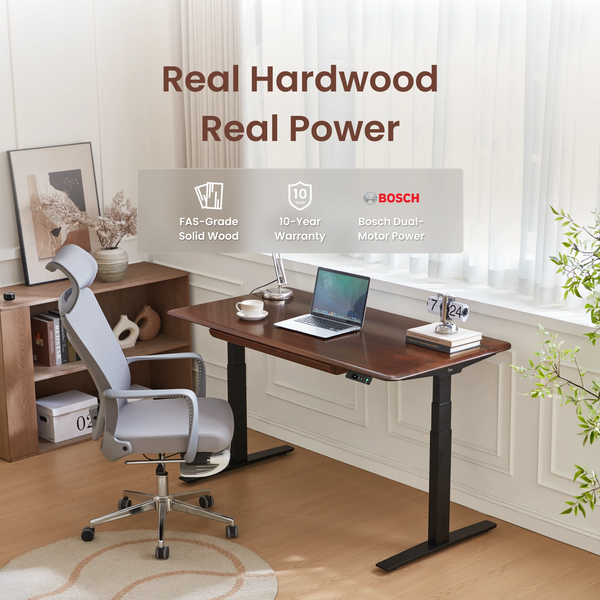
A high load rating alone does not guarantee stability, however. Frame design, desktop size and correct assembly also influence how a workstation feels during everyday use.
Practical Cable and Power Management
Adding a second monitor usually means more power, display and USB cables to manage. A laptop dock, speakers and charging equipment add even more connections.
Keep excess cable off the main work surface where possible. If you use a sit-stand desk, leave enough controlled slack for cables to move between sitting and standing heights.
Before securing everything permanently, raise and lower the desk through its full working range. This helps prevent a cable that looks loose while seated from becoming tight as the desktop rises.
How to Set Up Two Monitors on a Desk
Once the desk has enough space, arrange the screens around your normal working position rather than adjusting your posture to suit the monitors.

Position Your Main Monitor Directly in Front of You
If one screen handles most of your work, place it directly in front of you. This is generally more comfortable than keeping both monitors equally offset when you spend most of the day looking at only one.
If both screens are used at roughly the same frequency, WorkSafe Queensland recommends positioning them symmetrically, with the keyboard and your body centred between the two displays.
Source: WorkSafe Queensland – Setting up your workstation
Angle the Second Monitor Towards Your Working Position
For a main-and-secondary setup, position the second screen close to the primary monitor and angle it towards you.
This makes it easier to check email, reference documents, communication tools or secondary applications without repeatedly turning your upper body.
Avoid leaving a large gap between the screens. Keeping them close together usually makes switching your attention from one display to the other feel more natural.
Keep Both Screens at a Comfortable Height
WorkSafe Queensland advises placing the top of the monitor around eye level or slightly below, depending on the user's visual needs.
With two monitors, keep the usable viewing areas at a similar height where practical. Monitor risers or arms can help if the original stands do not provide enough adjustment.
If you move between sitting and standing, check the screen position at both heights rather than assuming one monitor setting will suit every working position.
Leave Enough Space for Your Keyboard and Mouse
Do not push the keyboard and mouse into a cramped area simply to make room for two displays.
WorkSafe Queensland recommends keeping the keyboard and mouse on the same level, with the keyboard generally around 10–15 cm from the front edge of the desk. This allows space for forearm support while keeping the controls within comfortable reach.
If large monitor stands take up too much of the desktop, using monitor arms or choosing a deeper desk can help reclaim working space.
What Is the Best Desk Setup for Two Monitors?
The best arrangement depends on how often you use each screen and whether your laptop is part of the everyday setup.
Side-by-Side Dual Monitor Setup
A side-by-side layout works well when both screens are used regularly.
Common examples include:
-
Spreadsheet + browser
-
Design software + reference material
-
Communication tools + daily work
-
Document editing + research
Keep the monitors close together and position the centre of the two-screen arrangement near your normal working position.
This layout gives both displays similar visual priority and works well when you move between applications throughout the day.
Main Monitor With an Angled Secondary Monitor
This arrangement suits users who spend most of their time on one application.
Keep the primary monitor directly in front of you and place the second screen beside it at a slight inward angle. The secondary display can then hold email, messaging, reference material or supporting tools.
This is often more comfortable than positioning both screens symmetrically when one monitor receives most of your attention.
Dual Monitors With a Laptop
A laptop + two-monitor setup needs more desktop planning than a standard dual-screen workstation.
Along with the two displays, you may need space for a laptop stand, dock, keyboard, mouse, chargers and other accessories. For this reason, larger desktop options tend to make more sense than compact desks.
The 9amHome Pesk is a practical option for this type of multi-device home office. It uses a Bosch dual-motor system and has a listed 125 kg load capacity with a 63–128 cm height range.
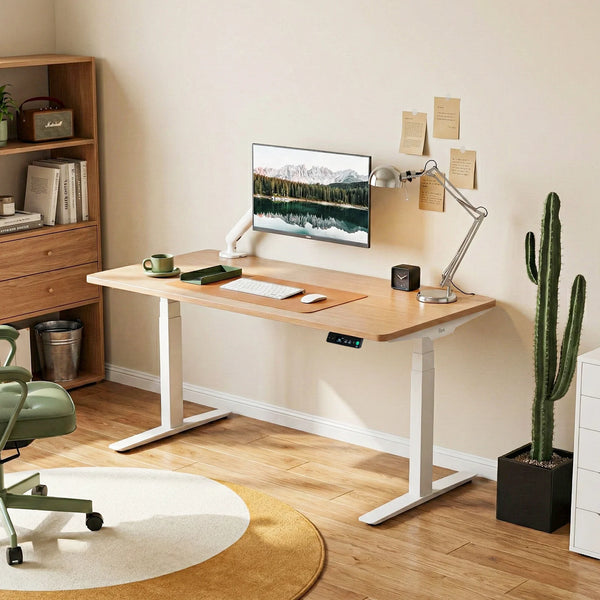
For a laptop-and-two-monitor setup, the 150 × 75 cm or 180 × 75 cm desktop options provide more usable room for a dock, keyboard and everyday accessories while still supporting sit-stand working.
Dual Monitor Setup With Monitor Arms
Monitor arms can free up the space normally occupied by large monitor bases. They also make it easier to adjust screen height, distance and angle.
This can be particularly useful on a smaller desktop or when you frequently move between sitting and standing.
Before choosing an arm, check the monitor's weight, supported screen size and mounting standard. You should also confirm that the desktop is suitable for the required clamp or mounting method.
How to Choose the Best Desk for a Dual Monitor Setup
Once you know how you want to arrange the screens, you can choose a desk around the equipment you actually use.

Choose the Width and Depth Around Your Monitor Setup
For many dual-monitor workstations, around 150–160 cm of width is a useful starting point. It usually provides enough room for two screens while leaving usable space for a keyboard, mouse and basic accessories.
A 180 cm desk makes more sense if you also keep a laptop, speakers, larger monitors or other equipment on the desktop.
Depth matters as well. Around 70–80 cm gives you more flexibility to position the screens at a comfortable distance while keeping enough room for your keyboard and mouse.
If you want a broader breakdown of desktop dimensions, the 9amHome desk measurements guide covers common desk widths and depths for compact, monitor-based and larger home office setups.
Check the Desk's Load Capacity and Stability
Consider the total workstation weight rather than the weight of the monitors alone.
Include:
-
Monitors
-
Monitor arms
-
Laptop or desktop computer
-
Speakers
-
Docking equipment
-
Other accessories that sit on the desk
For a fixed desk, the main concern is whether the surface and frame remain secure during normal use. For a sit-stand desk, also consider how stable the workstation feels as the desktop rises.
A desk that is stable at sitting height may show more movement when fully raised, especially if the monitor arms extend a long way from their mounting points.
Choose a Desk That Matches Your Working Style
The right desk also depends on how you work.
Mostly seated work: Prioritise sufficient desktop space, comfortable monitor positioning and a stable surface.
Sit-stand work: Pay more attention to height adjustment, stability at standing height and cable movement.
Multi-device work: Choose a larger working area that leaves enough room for a laptop, dock and other accessories without crowding the keyboard and mouse.
Compact home office: Monitor arms and vertical storage can help make better use of limited desktop space, especially when the office shares space with a bedroom or living area.
A standing desk is not essential for every dual-monitor setup. If you rarely change working position, a stable fixed desk with suitable dimensions may be all you need.
Consider a Dual-Motor Standing Desk for Heavier Setups
For a heavier sit-stand workstation, a dual-motor desk is worth considering. These systems are designed to manage larger working loads and frequent height changes across the desk frame.
Motor count is not the only factor, though. Frame construction, desktop dimensions and the overall design still matter when judging how stable a desk will feel.
9amHome uses dual-motor systems across models such as the Pesk and Pesk Pro, both of which are designed for multi-device sit-stand workstations. If you want to understand how the lifting systems differ, the 9amHome guide to single vs dual motor standing desks explains the main differences in load handling, speed and typical use.
Common Dual Monitor Setup Mistakes to Avoid
Even a large desk can feel uncomfortable if the screens and equipment are arranged poorly.
Putting Both Monitors Too Far Apart
A wide gap between monitors increases the amount of head movement needed when switching screens.
Keep the displays close enough that you can move between them comfortably, particularly when both are used frequently.
Placing the Screens Too Close to the Front Edge
Monitors positioned too far forward can reduce viewing distance and leave too little space for the keyboard and mouse.
Use the available desk depth to move the screens back where needed. Monitor arms can also help when large stands take up too much room.
Choosing a Desk Based Only on Width
A wide desk is not automatically a good dual-monitor desk.
A shallow desktop may still place large screens too close to you, while an oversized desk may simply waste space in a small home office.
Consider width, depth, equipment size and the available room together.
Ignoring the Weight of Monitor Arms and Other Equipment
Monitor arms, speakers, docks and desktop computers all contribute to the total load.
When comparing desks, calculate the approximate weight of the complete workstation rather than checking whether the desk can support two monitors alone.
Managing Cables Only at Sitting Height
Cable management on a sit-stand desk needs to work throughout the desk's movement range.
Raise the desk to your normal standing height and check that power, display and charging cables still have enough slack. Repeat the test at the lowest position before securing them.
FAQs About Dual Monitor Desk Setups
What Size Desk Is Best for Two Monitors?
A desk around 150–160 cm wide and 70–80 cm deep suits many dual-monitor setups. Consider 180 cm wide if you also use a laptop, speakers or other equipment.
Is a Standing Desk Worth It for a Dual Monitor Setup?
Yes, if you want to alternate between sitting and standing. Choose a model with enough surface area, an appropriate height range and sufficient stability for the combined weight of your equipment.
Should I Use Monitor Arms for Two Monitors?
Yes, especially if desk space is limited. Monitor arms can free up space beneath the screens and make positioning easier. Check monitor weight, mounting compatibility and desktop requirements before installation.
How Do I Stop Dual Monitors From Wobbling?
Start with a stable desk and make sure the frame and monitor mounts are properly tightened. Avoid extending monitor arms farther than necessary and check stability at your normal standing height if you use a sit-stand desk.
Can a Standing Desk Hold Two Monitors?
Yes. Many standing desks can support two monitors comfortably, but check the desk's rated load capacity and include monitor arms, computers, laptops and other accessories when estimating the total workstation weight.

Leave a comment