






Standing Desk Troubleshooting Guide & Understanding Common Issues
A standing desk that won’t go up or down, stops at the same height, shows an error code, or starts wobbling does not always have a failed motor. Many common standing desk problems come from power interruptions, loose connections, excessive load, obstructions, or a system that needs resetting.
This standing desk troubleshooting guide explains how to identify the most likely cause, reset the desk correctly, understand common error messages, and recognise when a problem may require professional support.
Start With Basic Standing Desk Troubleshooting
Start with the simplest checks before resetting the desk or investigating the lifting system. This can quickly rule out common external causes of inconsistent movement.

Check the Power Supply and Wall Outlet
Start by confirming that the desk is receiving power. Make sure the power cord is fully connected and test the wall outlet or power point with another device. If you are using a power strip, power board, or extension cord, plug the desk directly into the wall to rule out an unstable power source.
Inspect Cable and Control Box Connections
Loose connections can prevent the desk from moving even when the controller still has power. Check the cables connected to the handset, control box, motor, and lifting columns, and make sure each plug is firmly seated. Also look for stretched, pinched, or damaged cables that could interrupt the signal during height adjustment, especially if your standing desk cable management does not leave enough slack for the full height range.
Remove Excess Weight and Obstructions
Too much weight or a physical obstruction can cause the desk to stop, slow down, or reverse direction. Remove heavy equipment temporarily and check for cabinets, chair arms, cable bundles, or other objects in the desk’s travel path. If the desk works normally afterward, the issue is more likely related to load or anti-collision protection than the lifting system itself.
Fix a Standing Desk That Won’t Go Up or Down
A standing desk that refuses to move can fail in several different ways, and each pattern points to a different cause. For example, a lit controller with no movement suggests a different problem from a desk that rises normally but always stops near the same height.
Desk Has Power but Won’t Move
When the display is on but pressing the up or down button does nothing, start with the control system rather than the motor. A loose handset cable, activated keypad lock, or interrupted reset can all leave the desk powered but unresponsive. This often happens after moving the desk, unplugging the control box, or reconnecting cables during setup.
Reseat the main connections and check the display for a lock message such as LOC before resetting the desk. If the controller is unlocked but still unresponsive, complete the manufacturer’s reset procedure before moving on to hardware diagnosis.
Desk Stops at the Same Height Every Time
Repeatedly stopping at one height usually indicates a height limit, anti-collision trigger, or physical obstruction. A filing cabinet under one side or a monitor arm touching the wall can both stop movement at a repeatable height.
Cable tension is easy to overlook. If the power cord or adapter cable is almost fully stretched when the desk reaches its upper position, repeated movement can gradually loosen the connection. In that situation, the 9am Home Under Desk Cable Management Tray can keep the power strip, chargers, and excess cable secured under the desktop while leaving enough slack for height adjustment.
Desk Only Moves Up or Down
One-way movement can result from a lost height reference, a programmed limit, overload protection, or a system fault. If the desk goes down but won’t go up, check the load, upper height limit, and reset status. If it goes up but won’t go down, check for objects underneath the desktop, a lower height limit, or anti-collision protection.
After clearing the travel path, check the motor connections and run the recommended reset. Continued one-direction movement may point to a controller, motor, or lifting-column issue.
Reset Your Standing Desk and Understand Error Codes
This section covers when a reset is useful and how to interpret common controller messages. Because procedures and error codes vary by model, use the desk manual as the final reference.

How to Reset a Standing Desk
Many electric standing desks reset from their lowest position. A common method is to lower the desk completely, then keep holding the down button until the display changes or the desk makes a short downward-and-upward movement. The exact reset sequence can vary by controller, so check the model’s manual before starting.
A reset can restore the desk’s height reference after a power interruption or uneven movement. Clear the area underneath the desk first and do not force the desktop by hand during the process.
What RST, ASR, and RES Mean
RST, ASR, and RES generally indicate that the desk needs to enter or complete a reset sequence. They may appear after a power cut, cable reconnection, or interrupted movement.
In most cases, lower the desk fully and follow the manufacturer’s reset instructions. These messages alone do not necessarily indicate motor failure.
Common Standing Desk Error Codes
Error codes can vary between controllers. The Atom and Pesk examples below show how code meanings and troubleshooting steps can differ by series.
Atom Series
|
Code |
Meaning |
What to Do |
|
RST |
Reset |
Remove obstructions and complete the reset procedure. |
|
H01 |
Overheat protection |
Leave the desk untouched for about 20 minutes. |
|
E01 / E02 |
Desktop overload |
Check the load and obstructions, then reset the desk. |
|
E07 / E08 |
Column connection error |
Check the M1/M2 control box connections, then reset the desk. |
|
E11 / E12 |
Control box malfunction |
Reset the desk and contact support if the error remains. |
|
E13 |
Motor asynchronisation |
Reset the desk and contact support if the error remains. |
|
E32 |
Unknown error |
Reset the desk and contact support if the error remains. |
Pesk Series
|
Code |
Meaning |
What to Do |
|
RST |
Reset |
Remove obstructions and complete the reset procedure. |
|
E01 |
Connection error |
Reconnect the control box cables and hold the down button until the current height appears. Reconnect the power supply if E01 remains. |
|
E03 |
Load-bearing protection |
Reduce the desktop load. |
|
E12 |
Gyroscope anomaly |
Adjust the desktop. If E12 remains, leave the desk untouched for one minute. |
|
E00 |
Unknown error |
Power-cycle the desk, then reset it if needed. Contact support if the error remains. |
These are examples rather than a complete list for every model. For other 9am Home desks, visit the standing desk manuals and installation guides to find the relevant product manual and check the correct error codes and troubleshooting steps for your specific desk.
When an Error Code Indicates Hardware Failure
A recurring error after a proper reset is more likely to indicate a hardware problem. Signs include one leg failing to move, repeated uneven lifting, grinding noises, or visible cable damage. If these symptoms continue, avoid repeated resets and contact the manufacturer or service team for further diagnosis.
Fix Uneven, Slow, or Reversing Desk Movement
Uneven or sluggish movement usually points to a synchronization, load, or obstruction issue. The way the desk moves can help narrow down which part needs attention.
One Side of the Desk Is Higher Than the Other
An uneven desktop often means the lifting columns have lost synchronization. This can happen after a power interruption, an incomplete reset, or resistance on one side.
Remove anything blocking the frame, check both leg connections, and perform a full reset. If the desk becomes uneven again after recalibration, one lifting column may need further inspection.
One Standing Desk Leg Won’t Move
If one leg stays still while the other moves, stop operating the desk to avoid twisting the frame. A loose motor cable, faulty connection, or lifting-column issue is often the cause.
Check the cable running from the stationary leg to the control box and reconnect it securely. If that leg still does not respond after a reset, contact support rather than repeatedly trying to raise the desk.
Desk Moves Slowly or Struggles Under Load
If the desk moves normally with a light setup but slows after adding two monitors, a desktop PC, or other heavy equipment, excessive or uneven load is one possible cause, particularly on setups where single and dual motor standing desk performance differs under heavier loads. Check the total equipment weight, redistribute heavier items across the desktop, and confirm the power and motor connections before assuming the lifting system has reached its limit.
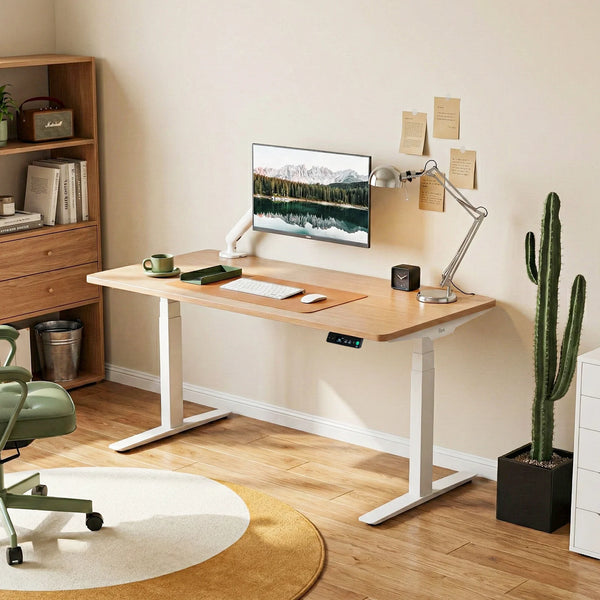
For workstations that regularly carry heavier setups, comparing electric standing desks by motor system and load capacity can help determine how much performance headroom is available. The Pesk Dual Motors Standing Desk uses a Bosch dual-motor system with a 125 kg dynamic load rating and 38 mm/s lifting speed.
Desk Moves Then Reverses Direction
A desk that rises briefly and then reverses is often reacting to anti-collision protection. The system may be detecting a cabinet, chair arm, cable bundle, or unexpected resistance.
Clear the travel path and test the desk again with less load. If it reverses at the same point with no visible obstruction, check the anti-collision sensitivity setting or reset the desk before investigating the control system further.
Diagnose Wobble, Noise, and Hardware Problems
Wobble and unusual noises should be diagnosed separately because they can come from different parts of the desk. Start with external hardware and frame checks before moving to the lifting system.
Why Your Standing Desk Wobbles
Wobble can become more noticeable when an electric standing desk is raised to standing height because the frame has less lateral support. Loose bolts, uneven flooring, poorly adjusted feet, or a flexible monitor arm can all make the desktop shake.
If those checks do not solve the wobble, frame rigidity becomes the next consideration. Reposition heavier equipment closer to the centre of the desktop before judging the frame itself.
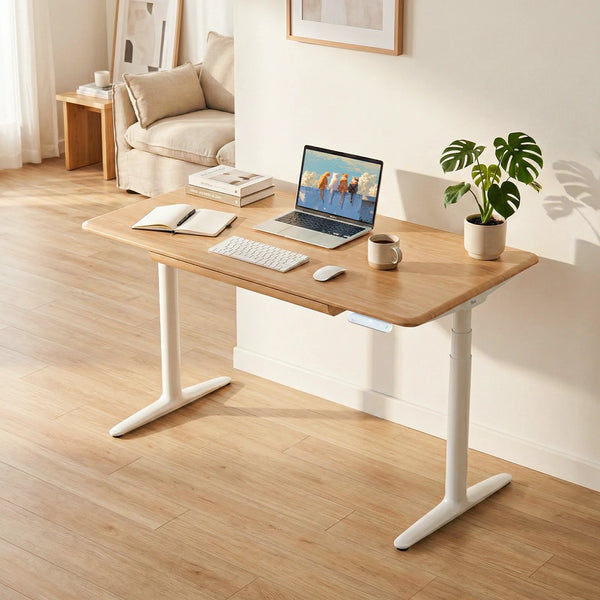
For setups with dual monitors or heavier equipment, the Atom Pro Ash Hardwood Standing Desk combines dual motors, die-cast aluminium feet, and a 125 kg load capacity, making it better suited to workstations where frame support and load capacity are important considerations.
Why the Desk Makes Clicking or Grinding Noises
Occasional light sounds during height adjustment can be normal, but repeated clicking or grinding deserves attention. A loose fastener, cable rubbing against the frame, or misaligned moving part can create noise each time the desk passes a certain height. For example, a click that occurs at exactly the same point during every lift may point to a specific mechanical contact or moving component that needs closer inspection.
Check the Motor, Drive Shaft, and Lifting Columns
Persistent noise or uneven movement should be traced through the lifting system. Check that the motor and mounting hardware are secure, then inspect the drive shaft on models that use one and make sure the lifting columns move smoothly without visible misalignment.
Do not open sealed motor or gearbox components unless the manufacturer specifically recommends it. Internal repairs can require model-specific parts and procedures.
When to Stop Troubleshooting and Contact Support
Stop troubleshooting when the desk shows signs of mechanical damage or continues behaving abnormally after basic checks and a reset. One leg failing repeatedly, loud grinding, sudden drops, burning smells, or recurring error codes are all reasons to stop operating the desk.
At that stage, further DIY adjustments may worsen the problem. Before contacting support, record the error code, desk behaviour, and any unusual sounds, and take photos or a short video if the issue is visible. Have your order number and model details ready so the support team can diagnose the problem more efficiently.
Conclusion
A reliable troubleshooting process starts with simple checks and only moves to hardware diagnosis when the symptoms persist. Use the desk’s movement pattern and error messages to narrow down the issue before replacing parts or assuming motor failure.
If a reset, cable check, or load adjustment does not solve the problem, avoid forcing the desk or repeating the same troubleshooting steps. Persistent uneven movement, grinding noises, recurring error codes, or a non-responsive lifting column are signs that professional support may be needed.
FAQ
Can I Manually Lower an Electric Standing Desk During a Power Outage?
Usually not. Most electric standing desks rely on powered motors to move the lifting columns, so forcing the desktop down by hand can damage the frame or drive system. Wait until power is restored unless the manufacturer provides a specific manual-lowering procedure.
How Long Should I Let a Standing Desk Motor Cool Down?
Allow the standing desk motor to cool for the period specified in its user manual before operating it again. Many electric desk systems require a rest period after repeated height adjustments, but the exact cooling time and duty cycle vary by motor and controller. If an overheating warning remains, do not continue operating the desk until the system has cooled and the warning has cleared.
Will a Power Outage Erase My Standing Desk Memory Settings?
Not always. Many standing desks retain saved height presets after losing power, but some controllers may require recalibration or a reset. If the display works but the desk behaves unusually after an outage, complete the recommended reset procedure first.
Why Does My Standing Desk Show “LOC”?
“LOC” commonly means the keypad or controller is locked. The desk may still have power but will not respond to normal height controls until the lock is disabled. The unlock method varies by controller, so follow the manufacturer’s instructions rather than repeatedly pressing the buttons.
Does an Electric Standing Desk Need Lubrication?
Routine lubrication is usually unnecessary unless the manufacturer specifically recommends it. Applying oil or grease to lifting columns without guidance can attract dust or interfere with internal components. If movement becomes noisy or rough, check alignment, fasteners, and obstructions before adding lubricant.
How Often Should I Maintain My Standing Desk?
Periodic inspection is usually enough for normal home-office use. As a practical routine, check bolts, feet, cables, and moving clearances every few months, or whenever the desk has been moved or starts behaving differently. Regular checks can catch loose hardware and cable tension before they develop into larger movement problems.

Leave a comment