






Remote Work Setup: How to Build a Productive Home Office in Australia
Working from home is now a normal part of working life in Australia. According to the Australian Bureau of Statistics, 36% of employed people usually worked from home in August 2025. For many Australians, the home office is no longer a temporary arrangement but part of their everyday working environment.
A productive remote work setup should make work easier to begin, keep essential equipment organised, and create a clear end to the working day. That does not require a spare room or a full renovation. It requires a workspace that fits the home, the user and the tasks completed there.
Why Does a Proper Remote Work Setup Matter?
A well-planned home office removes small daily interruptions while making the workspace easier to use over a full working day.
Improve Focus and Work Efficiency
Consistency creates a clearer transition into work. Even a compact desk in a bedroom corner can support concentration when the screen, keyboard and cables remain organised.
Consider someone who works from the family dining table. Moving household items, finding a charger and reconnecting a laptop each morning creates a regular delay. A fixed work zone allows the first task to begin sooner and reduces the chance of equipment being moved or misplaced.
Location also affects how easily work gets done. Video meetings may require a quiet background and reliable Wi-Fi, while detailed computer work may need stronger light control and fewer visual distractions.
Reduce Physical Strain During Long Work Hours
Discomfort often reflects a mismatch between several parts of the workstation rather than one unsuitable product. A supportive chair cannot fully compensate for a low laptop screen, just as a suitable desk height will not help when the mouse sits too far away.
Comcare treats the workstation as the combined desk, chair, monitor, keyboard and mouse. Looking at the full arrangement can reveal a simple cause. A raised shoulder, for example, may result from a mouse positioned too high, while repeated neck bending may indicate that the screen is too low.
Create a Better Work-Life Balance
When the office shares space with the home, work can easily continue into the evening. A laptop left open on the dining table still signals unfinished work after normal hours, even when no active task is being completed.
At the end of the day, save your work, close communication apps, and put smaller items away. Even storing the keyboard and notebook can create a clearer boundary between work and personal time.
A suitable remote work setup therefore supports more than productivity. It reduces repeated preparation, helps the equipment work together and makes it easier to separate working hours from home life.
How to Set Up a Remote Workspace at Home
Once the purpose of the workspace is clear, the next step is to adapt its location, furniture and layout to the realities of the home.
Choose the Right Location for Your Home Office
A practical workspace needs to fit around household movement while also providing suitable daylight, ventilation, temperature control, nearby power points and a reliable internet connection.
Because these conditions can change throughout the day, test the area before buying furniture. A corner that feels quiet and comfortable in the morning may become hot, noisy or distracting later, so check the light, temperature and surrounding activity at the times you are most likely to work.
Find a Dedicated and Distraction-Free Workspace
A dedicated workspace does not require a separate room. What matters is having a repeatable place where the main equipment can remain ready.
In a one-bedroom apartment, that might mean placing a slim desk against the bedroom wall instead of working from the bed. A shared dining area can also work when cables are contained, and work items have somewhere to go after hours.
Household movement matters as well. A desk beside the kitchen walkway may interrupt calls and expose cables, whereas a quieter wall can provide a more stable setup without taking over the entire room.
Consider Lighting and the Natural Environment
Being close to a window is not automatically better. Identify when you complete your longest or most demanding work, then test the intended position during those hours.
A screen that looks clear at 9 am may catch strong glare at 3 pm, especially in a west-facing room. Sit in the actual working position and check reflections, desk shadows and video-call lighting in both the morning and afternoon. A window usually works best beside the monitor rather than directly in front of or behind it.
Curtains or blinds can soften strong sunlight. When daylight is limited, use a desk lamp that lights the work surface without shining into your eyes or screen. Temperature also deserves attention. A bright nook may feel pleasant on a winter morning but become uncomfortable in direct summer sun.
Maximise Space in a Small Home Office
In an apartment, unit or bedroom corner, measure more than the available wall. Allow room for the chair to move, drawers to open and people to walk past without catching cables.
For a compact room, a smaller standing desk can preserve floor space while still allowing the working height to change. The 1100 × 650 mm configuration of the 9amHome Atom Mini provides room for a laptop or single-monitor setup while remaining easier to position within a study nook than a larger workstation.
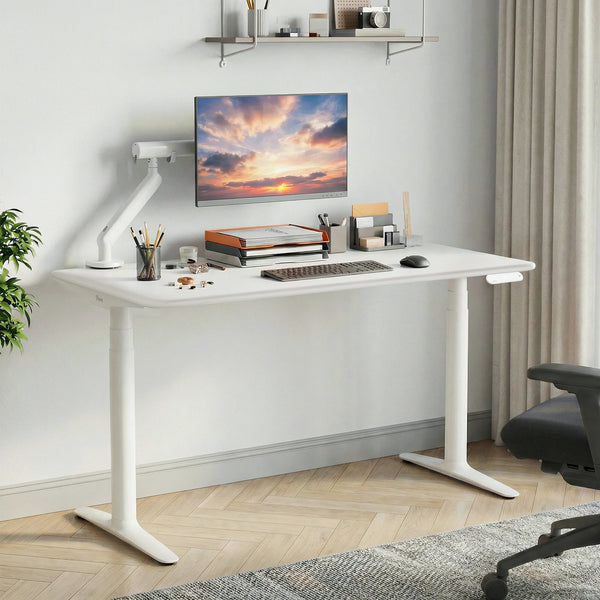
For example, in a bedroom corner just over 1.2 metres wide, a full-size desk may block a wardrobe or restrict the chair. A compact model can leave enough clearance for both without forcing the user to return to the bed or dining table.
Choose Essential Furniture for a Productive Home Office
Furniture should match the available space, equipment and daily tasks. Adjustable features are useful only when they are simple enough to use regularly.
Select the Right Desk for Your Work Style
A home office desk for a laptop-only setup needs less surface area than one designed for two monitors and a docking station. Depth matters as much as width because it affects the distance between the user, keyboard and screen.
For remote workers who move between focused computer work, calls, planning and reading, an electric sit-stand desk can make height changes easier to repeat. The 9amHome Pesk Standing Desk has a 63 to 128 cm height range and a dual-motor lifting system. Optional cable management can help keep power boards and cables organised as the desktop moves.
The aim is not to stand all day. Someone might sit while writing a report, raise the desk for a short call and sit again for spreadsheet work. The 9amHome article on building a gradual sit-stand routine explains how to introduce these changes without replacing full-time sitting with full-time standing.

Invest in an Ergonomic Office Chair
Instead of searching for one perfect sitting position, choose a chair that supports controlled adjustments.
The 9amHome Newton Ergonomic Chair combines an S-curve backrest, 4D armrests, up to 60 mm of seat-depth adjustment and four lockable recline positions. These settings make it easier to adapt the chair for typing, reading and brief periods of reclined sitting.
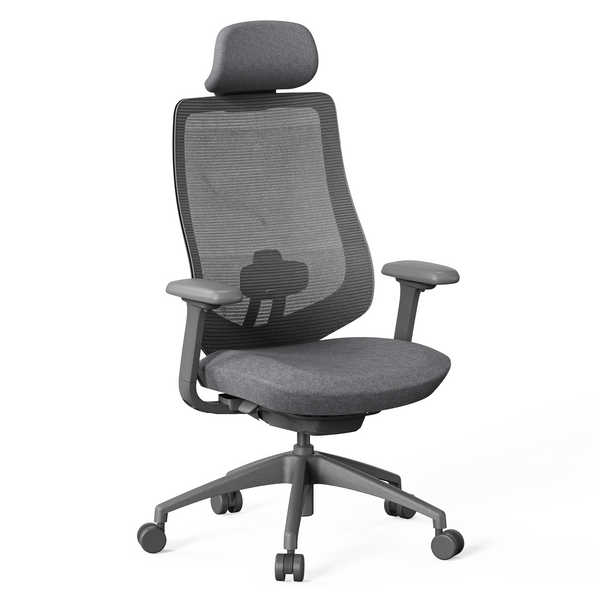
A remote worker may sit more upright while typing but recline slightly during a long presentation or training session. Being able to change position is generally more useful than trying to hold one rigid posture throughout the day.
Add Functional Accessories for Better Organisation
Accessories should solve a clear problem, such as raising a screen, freeing desktop space or managing cables. Adding equipment without a specific purpose can make a small desk feel more crowded.
The 9amHome Single Monitor Arm provides up to 250 mm of vertical travel, screen tilt, swivel and 360-degree rotation. Its rear cable channel and detachable clips help keep cables off the main work surface.
A monitor arm can also help when glare changes throughout the day or the screen needs to be repositioned for a video call. This model supports 17 to 34-inch monitors weighing between 2 and 9 kg, with 75 × 75 mm or 100 × 100 mm VESA mounts.
Create an Ergonomic and Comfortable Workspace
Once the furniture is in place, the workstation needs to be adjusted around the user rather than left in its default position.
Adjust Your Desk and Monitor Height
Set the desk so your shoulders remain relaxed and your forearms sit close to the height of the work surface. Keep the keyboard and mouse near enough that your elbows stay close to your body.
Place the main monitor directly in front of you at a comfortable distance. When text is hard to read, check the display scaling before pulling the screen closer or leaning forwards.
For longer laptop sessions, raise the device on a stable stand and connect an external keyboard and mouse. This separates the viewing height from the typing height, which is difficult to achieve when the laptop screen and keyboard remain attached. The 9amHome ergonomic desk setup guide provides a fuller check of desk height, monitor placement, chair support and movement.
Maintain Proper Sitting and Standing Habits
There is no single posture to hold throughout the working day. Moving between suitable positions is more practical than trying to remain completely still.
A sitting desk to standing desk transition should be gradual. While sitting, keep your feet supported and change the chair angle when the task changes. When standing, set the desk so typing does not lift your shoulders, then sit again when your feet, legs or concentration begin to tire.
Daily tasks can provide natural movement prompts. Stand for part of a phone call, sit for detailed writing and take a short walk after a meeting instead of relying on a strict sit-stand timetable.
Personalise Your Workspace for Long-Term Productivity
Personalisation starts with understanding how you use the space each day. An early starter may need focused task lighting before sunrise, while someone sharing a room may rely on headphones to reduce distractions. Regular video calls may also require a setup that can be prepared quickly without rearranging the workspace each time.
The next step is to make the office fit the available space and the equipment you use. Keep frequently used items, such as a headset, charging cable and webcam controls, within easy reach. Less-used equipment can be stored in drawers or closed storage to keep the main work surface clear and easier to use.
A productive workspace is therefore built through a combination of suitable furniture and small practical adjustments. When the location, equipment and working habits support one another, the setup becomes easier to use consistently.
Common Remote Work Setup Mistakes to Avoid
Even a visually appealing home office can become difficult to use when basic measurements, working habits or future needs are overlooked.

Working From the Couch or Bed
A couch or bed may suit a brief task, but both limit sustained computer work. The screen usually sits too low, the arms lack support, and movement is restricted.
Checking email from the couch for ten minutes is very different from editing a report there for three hours. Longer work needs a stable surface that allows the screen and input devices to be positioned separately.
Choosing Style Over Function
An attractive desk can still be too shallow, too high or too large for the room. Check measurements, cable routes and chair clearance before choosing colours and finishes.
A narrow console table, for example, may look suitable in a small apartment but leave too little distance between the keyboard and monitor. Similarly, a large executive desk may dominate a shared room and reduce the space available for normal household movement.
Ignoring Long-Term Comfort
A setup that feels acceptable for half an hour may become tiring over a full working day. Repeated leaning, a raised shoulder, or frequent twisting can show which part of the workstation needs attention.
The solution does not always require replacing furniture. Moving the mouse closer, adjusting the display scale or changing the chair height may be enough to improve the arrangement.
Avoiding these common mistakes is largely a matter of testing the workspace during real tasks rather than judging it by appearance alone.
Conclusion
A productive remote work setup is created by matching the workspace to the home, the user and the working routine.
A separate room or complete renovation is not essential. Start with a consistent work area, then adjust the desk, chair, screen, lighting and storage around the tasks completed most often. Compact furniture can make a small apartment more workable, while the right adjustments help keep a larger home office or shared work area comfortable throughout the day.
The best home office is not necessarily the biggest or most expensive. It is one that remains practical to use, easy to organise and simple to leave behind at the end of the working day.
FAQ
Where Should I Put My Desk in an Australian Home?
Choose a position where you can manage glare, noise and temperature while maintaining access to power points and reliable internet. A bedroom corner, study nook or section of a dining area can work when there is enough chair clearance and the setup does not block household movement.
Before committing to the location, test it during your usual working hours. This can reveal afternoon heat, unstable Wi-Fi or household interruptions that may not be obvious during a quick inspection.
How Do I Reduce Screen Glare From Strong Afternoon Sun?
Place the window beside the monitor rather than directly in front of or behind it, then use curtains or blinds to soften direct sunlight. A height-adjustable desk can shift the screen out of a strong reflection zone, while a monitor arm can change its height, tilt and angle without moving the entire workstation.
Test the arrangement when glare is strongest. A setup that works in the morning may need a different monitor angle later in the day.
Does Australia's Right to Disconnect Apply When Working From Home?
Working from home does not remove an eligible employee's right to disconnect. Employees may refuse to monitor, read or respond to work-related contact outside their working hours unless that refusal is unreasonable.
Not every instance of out-of-hours contact is unlawful. The reason for the contact, the level of disruption, the employee's role, additional compensation and personal circumstances can all be relevant. Employees should check any applicable award or enterprise agreement and review the Fair Work Ombudsman's right to disconnect guidance.
These answers provide a practical starting point, but the final setup should still be tested against the home's layout, the employee's responsibilities and the way the workspace is used each day.

Leave a comment