



Ergonomic Desk Setup: How to Create a Better Workstation
Long hours at a desk can easily lead to neck stiffness, back pain, wrist strain, and general fatigue. These problems often start small, but they can become more noticeable when your workstation does not support a natural posture.
A well-planned ergonomic desk setup can help improve body alignment, reduce unnecessary strain, and make daily work feel more comfortable. It is not only about sitting correctly, but also about creating a workstation where your desk, chair, monitor, keyboard, mouse, lighting, and movement habits work together.
This guide will show you how to create a better workstation step by step, so you can improve comfort, support productivity, and build healthier working habits.
Why an Ergonomic Desk Setup Matters
An improper workstation can place repeated stress on your body. Poor posture, an unsuitable desk height, a low monitor, or an awkward wrist angle may not feel serious at first, but the effects can build up over time.
For example, working on a laptop at the kitchen table for more than four hours may cause you to bend your neck forward. Slouching during Zoom calls can increase pressure on your lower back. Typing with your wrists angled upward or sideways can lead to wrist and shoulder discomfort.
That is why an ergonomic desk setup should be viewed as a complete system. A comfortable workstation depends on the combined setup of your desk, chair, monitor, keyboard, mouse, lighting, and daily movement. When these elements are aligned, your body can work in a more natural and relaxed position.
How to Set Up an Ergonomic Workspace Step by Step
A good ergonomic desk setup depends on how your desk, chair, monitor, keyboard, mouse, and lighting work together. Each element should help your body stay supported, relaxed, and easy to move throughout the day.
Adjust Your Desk Height
Set your desk so your elbows bend naturally at about 90–100 degrees and your forearms stay level with the desktop. Your shoulders should feel relaxed, and your wrists should remain neutral while typing.
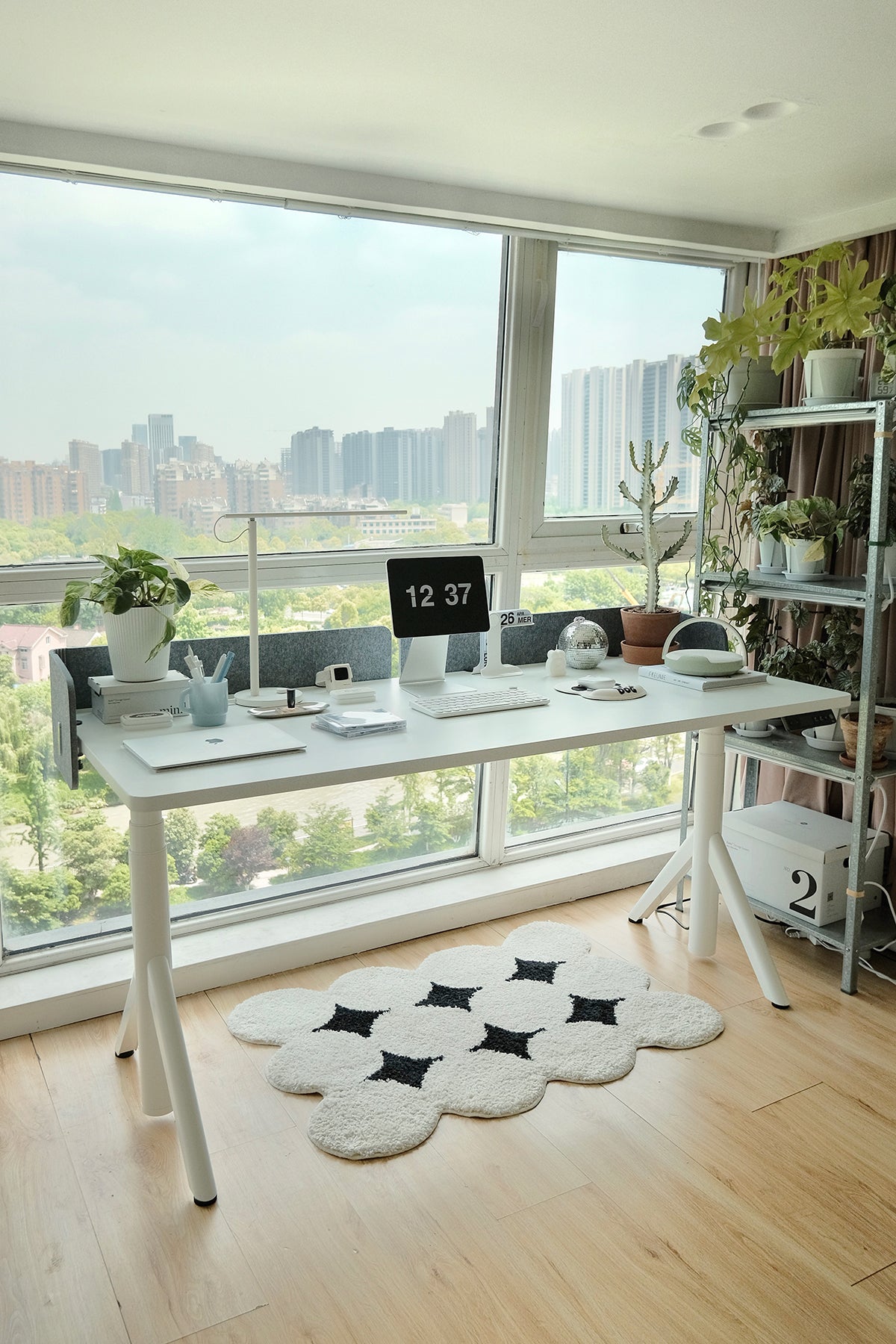
If you switch between sitting and standing, a standing desk makes height adjustment easier. When standing, keep the same elbow angle and place the top of your screen near eye level.
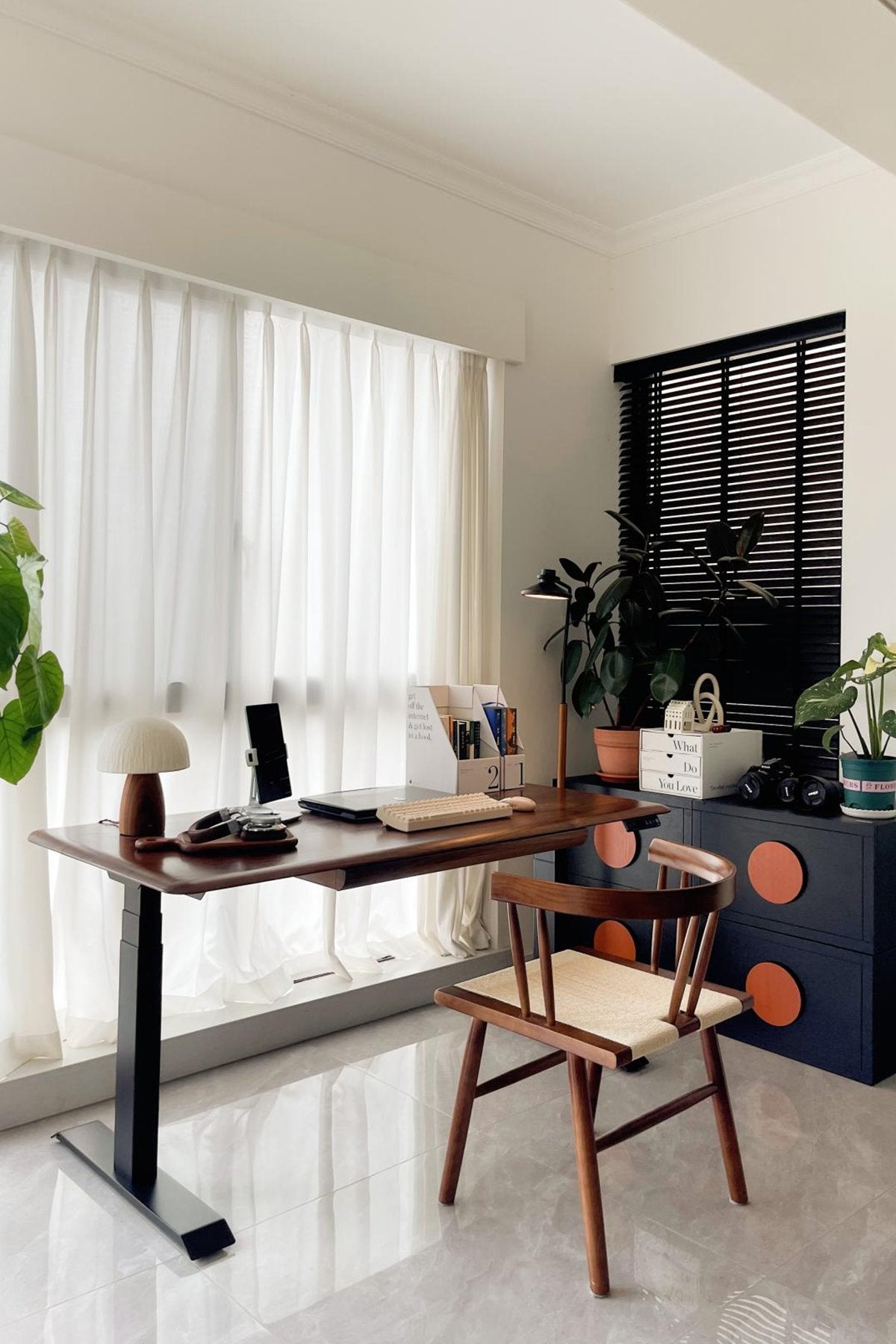
For users who often change positions, the 9 am Home Pesk Pro Hardwood Home Office Electric Standing Desk is a practical option. Its Bosch motor system helps make height changes smoother, quieter, and more convenient during daily work.
Set Up Your Ergonomic Chair
A good ergonomic chair should support your lower back, hips, arms, and neck while helping you sit in a natural posture.
|
Setting |
Recommended Value / Position |
Purpose & Explanation |
|
Seat Height |
Knees at about 90°–100°, feet flat on the floor or footrest |
Keeps thighs parallel to the floor and reduces lower back strain |
|
Seat Depth |
2–3 finger-widths between the seat edge and the back of the knees |
Distributes weight evenly and avoids pressure behind the thighs |
|
Lumbar Support |
Positioned at the natural lower back curve, adjustable height or depth |
Supports the spine’s curve and reduces lower back discomfort |
|
Backrest Tilt |
Around 100°–110°, with adjustable resistance |
Reduces spinal pressure and helps relax the upper body |
|
Armrest Height |
Shoulders relaxed, elbows bent around 90° |
Supports the arms and helps reduce shoulder and wrist strain |
|
Headrest Position |
Head rests naturally, neck neutral or slightly forward |
Relieves neck pressure and reduces stiffness |
A chair works best when it matches the height and function of your desk. If you are building a workstation from scratch, choosing a desk-and-chair combination with consistent ergonomic support can make daily adjustments more convenient. For example, a setup like the 9 am Home Atom Standing Desk and Newton Chair Set can help align sitting support with flexible height adjustment for everyday work.

Position Your Monitor Correctly
Place your monitor about 20–30 inches away, with the top of the screen roughly at eye level. This helps reduce neck bending and eye fatigue.
If it sits too low or too far away, a riser or adjustable monitor arm can help you fine-tune the screen position more easily. For desks that need more flexible adjustment, an option like the 9amHome single monitor arm can be a practical way to raise, tilt, and reposition your screen as needed.
Arrange Your Keyboard and Mouse
Keep your keyboard and mouse close to your body and on the same level. Your elbows should stay near your sides, your shoulders relaxed, and your wrists neutral.
Keyboard and mouse placement should also match your chair arm height. This helps reduce reaching, twisting, and unnecessary strain on the wrists and shoulders.
Improve Lighting and Desk Layout
Avoid screen glare and keep ambient lighting close to your monitor brightness. Good lighting helps reduce eye strain and makes the workstation more comfortable.
Keep frequently used items within easy reach, such as your phone, notebook, and water bottle. A clean layout helps your chair, desk, monitor, keyboard, and mouse work together as one ergonomic setup.
Develop Healthy Sit-Stand Habits for Ergonomics
A good ergonomic setup is not only about how your workstation is arranged, but also about developing healthy sit-stand habits throughout the workday.
Healthy sit-stand habits include:
-
Switch Between Sitting and Standing: Change position every 30–60 minutes to reduce stiffness and support better circulation.
-
Take Short Activity Breaks: Step away from your desk, stretch your shoulders, or walk briefly between tasks.
-
Adjust Workload with Posture: Use sitting for focused writing or detailed work, and standing for calls, quick tasks, or light reading.
A sit-stand desk makes these habits easier because you can adjust your workstation without interrupting your workflow. Over time, regular posture changes can help improve energy, reduce fatigue, and make long workdays more comfortable.
Other Tips for a More Ergonomic Workspace
Beyond the main workstation setup, a few smaller choices can further improve comfort and efficiency.
Optimize Your Desk Choice
When choosing a desk, focus on adjustable height, stability, and enough surface space for your daily work. Your desk should hold your monitor, keyboard, mouse, and essential accessories without feeling crowded.
A sit-stand desk is especially useful because it allows smooth posture changes throughout the day. Instead of staying seated for hours, you can move naturally between sitting and standing based on your task and comfort level.
To make sitting and standing easier throughout the day, a smooth electric standing desk can be helpful. The 9amHome Pesk Series Bosch Dual Motor Smart Electric Standing Desk is a suitable choice for users who want more flexible height adjustment in a daily home office setup. The true value of a standing desk is that it allows users to switch more naturally between different working states throughout the day.
With Australia’s 2026 EOFY season coming up, it can also be a good time to upgrade your office setup with a more ergonomic standing desk from 9amHome.

Organize Your Desk for Comfort and Efficiency
A clean desk helps you maintain better posture. If your keyboard is pushed too far away by clutter, you may start reaching forward. If your mouse space is blocked, your wrist or shoulder may move at an awkward angle.
Keep your main work area simple. Place your keyboard and mouse directly in front of you, keep documents close to the monitor, and store cables or accessories neatly. A more organized desk can improve both comfort and efficiency.
Practice Awareness of Your Body
Even the best ergonomic desk setup still requires regular body awareness. Pay attention to signs such as tight shoulders, wrist pressure, lower back stiffness, or eye fatigue.
When discomfort appears, adjust your position, change from sitting to standing, or take a short break. Ergonomics is not a one-time setup. It is an ongoing habit of noticing your body and making small improvements throughout the day.
Conclusion
A better ergonomic desk setup can help reduce discomfort, support better posture, and make daily work more comfortable. By adjusting your desk height, choosing a supportive chair, positioning your monitor correctly, arranging your keyboard and mouse, improving lighting, and building healthy sit-stand habits, you can create a workstation that works with your body.
A well-designed workstation should fit your body, support natural posture, and help you work comfortably with less strain throughout the day.
FAQ
Are standing desks good for you?
A standing desk can support better ergonomics when it helps you switch between sitting and standing throughout the day. The goal is not to stand for hours, but to change posture regularly and reduce strain from staying in one position.
What are the signs of poor ergonomics?
Common signs include neck stiffness, lower back pain, shoulder tension, wrist discomfort, headaches, and eye fatigue. These symptoms often appear after long hours of sitting, typing, or looking at a poorly positioned screen.
How to properly sit at a desk?
Sit with your feet flat on the floor, knees bent around 90–100 degrees, and lower back supported. Keep your shoulders relaxed, elbows close to your body, and wrists neutral while typing. Your screen should be at eye level and about 20–30 inches away.
What is the 90-90-90 rule for sitting?
The 90-90-90 rule means your knees, hips, and elbows should each be close to a 90-degree angle when sitting. This position helps support a neutral posture and reduces unnecessary strain on the back, shoulders, and wrists.

Leave a comment